



QuickBooks Online Accountant
Company Setup Guide: USA-Based Company
Super Care Pharmacy , Ismail /CTG511Demo
| Item | Detail |
| Prepared by | Ismail and Associates |
| Platform | QuickBooks Online Accountant (Intuit for Education login) |
| Company name | Super Care Pharmacy , Ismail /CTG511Demo |
| Country base | United States (USA) |
| Industry | Medical health care |
| Business structure | Partnership |
| Employees | 6-10 |
1. Purpose and Overview
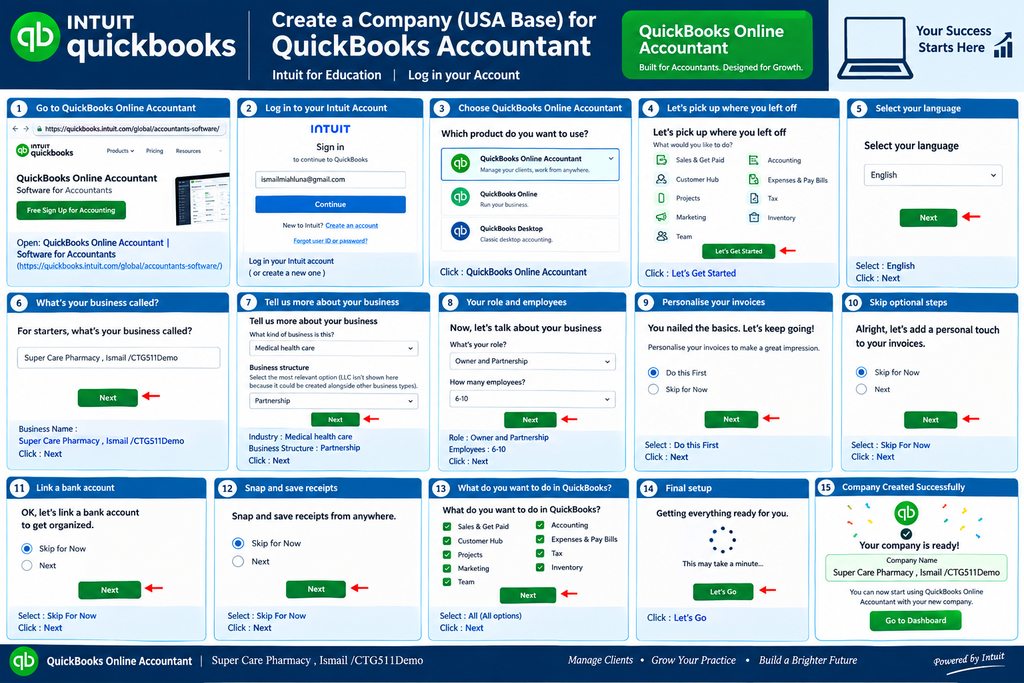
This guide gives the complete, ordered procedure for creating a USA-based demonstration company in QuickBooks Online Accountant, using the Intuit for Education account. It follows the on-screen sequence exactly, from sign-in to the final Home dashboard, so that each screen, click and entry can be repeated without variation.
On completion, the company opens on the QuickBooks Online Home page showing the welcome message, Business feed, Create actions and Business at a glance tiles (Bank Accounts, Profit and Loss, Expenses and Cash Flow).
2. Before You Start
- An active Intuit for Education login (email address and password).
- A stable internet connection and an up-to-date web browser.
- Confirm that the country and region is set to United States, so the company uses US-based chart of accounts, currency (USD) and tax settings.
- Keep the exact company name ready to copy: Super Care Pharmacy , Ismail /CTG511Demo
3. Step-by-Step Procedure
Phase A: Sign In to QuickBooks Online Accountant
| No. | Screen | Action | Selection / Entry |
| 1 | Intuit for Education | Log in to your account. | Email and password |
| 2 | QuickBooks Online Accountant page | Open the QuickBooks Online Accountant product page (quickbooks.intuit.com/global/accountants-software). | Software for Accountants |
| 3 | Free sign-up for Accounting | Continue signing in. | Click Continue or Log in |
| 4 | Product selection | Choose the accountant product. | Click QuickBooks Online Accountant |
Phase B: Welcome Screen
| No. | Screen | Action | Selection / Entry |
| 5 | Let’s pick up where you left off | Review the modules shown: Sales and Get Paid, Customer Hub, Projects, Marketing, Team, Accounting, Expenses and Pay Bills, Tax, Inventory. | No selection needed |
| 6 | Welcome | Start the setup. | Click Let’s Get Started |
Phase C: Language and Business Profile
| No. | Screen | Action | Selection / Entry |
| 7 | Select your language | Choose the language. | English, then click Next |
| 8 | For starters, what’s your business called? | Enter the business name. | Super Care Pharmacy , Ismail /CTG511Demo, then click Next |
| 9 | Tell us more about your business | Select the industry. | Medical health care |
| 10 | Business structure | Select the most relevant option. (LLC is not shown because it can be created alongside other business types, for example a sole proprietor as a single-member LLC.) | Partnership, then click Next |
| 11 | Now, let’s talk about your business: role | Select your role. | Owner and Partnership |
| 12 | Now, let’s talk about your business: employees | Select the number of employees. | 6-10, then click Next |
Phase D: Optional Setup Screens
The screen titled “You nailed the basics. Let’s keep going!” appears. Complete or skip each prompt as shown below.
| No. | Screen | Action | Selection / Entry |
| 13 | Personalise your invoices to make a great impression | Choose when to personalise. | Select Do this first, then click Next |
| 14 | Let’s add a personal touch to your invoices | Defer branding. | Select Skip for now |
| 15 | Let’s link a bank account to get organised | Defer bank connection. | Select Skip for now |
| 16 | Snap and save receipts from anywhere | Defer receipt capture. | Select Skip for now |
Phase E: Feature Selection and Finish
| No. | Screen | Action | Selection / Entry |
| 17 | What do you want to do in QuickBooks? | Select every available option. | All selections, then click Next |
| 18 | Getting everything ready for you | Wait for the workspace to load. | Click Let’s Go |
| 19 | Create the company | Confirm the company is created and active. | Super Care Pharmacy , Ismail /CTG511Demo |
4. Result: What You Should See
After step 19, the QuickBooks Online Home page opens with the company name displayed at the top left. The screenshot below shows the finished setup.
Figure 1: QuickBooks Online Home page after company creation
5. Home Page Elements
| Area | What it shows |
| Left menu | Create, Bookmarks, Home, Feed, Reports, All apps, Pinned and More. |
| Module tabs | Accounting, Expenses and Pay Bills, Sales and Get Paid, Customer Hub, Team, Projects, Inventory. |
| Business feed | Bank transactions card prompting you to connect accounts. |
| Create actions | Create invoice, Record expense, Add bank deposit, Create cheque, Show all. |
| Bank Accounts | Sample linked accounts shown until a real bank is connected. |
| Profit and Loss | Income and expenses (Tk0 until transactions are brought in). |
| Expenses | Spending breakdown chart, populated after transactions are added. |
| Cash Flow | Monthly cash flow chart from January to December. |
6. Verification Checklist
- Company name appears exactly as: Super Care Pharmacy , Ismail /CTG511Demo
- Industry is Medical health care and structure is Partnership.
- Employee range is 6-10 and role is Owner and Partnership.
- Country is United States and currency is USD.
- Home page loads with Business at a glance tiles.
7. Recommended Next Steps
- Connect the bank account when ready (Home, Bank Accounts, Find your bank).
- Complete invoice branding under Settings.
- Review the chart of accounts and adjust for pharmacy operations.
- Add products, services and inventory items.
- Set up users and permissions for the team.
8. Troubleshooting
| Issue | Resolution |
| Cannot sign in | Reset the password through Intuit for Education and retry. |
| Setup screen does not advance | Refresh the browser, or clear cache and cookies, then sign in again. |
| Wrong country or currency | Verify the country is United States at company creation, since currency cannot easily be changed later. |
| Company name typed incorrectly | Edit under Settings, Account and settings, Company. |
RELATED POSTS
View all


Export Performance Report From 1st July-2021 to 30 June-2026
July 28, 2026 | by Mohmmed Ismail Miah
Comparative Statement of VDS & TDS as per Finance Act 2026
July 28, 2026 | by Mohmmed Ismail Miah