





QuickBooks Learning Guide
Intuit Education, QuickBooks Online, QuickBooks Desktop and Free Trial Options
Prepared for: Mohammed Ismail Miah, Ismail and Associates
Purpose: Clarify the Intuit account structure, choose between QuickBooks Online and Desktop, and practise bookkeeping without entering personal payment details.
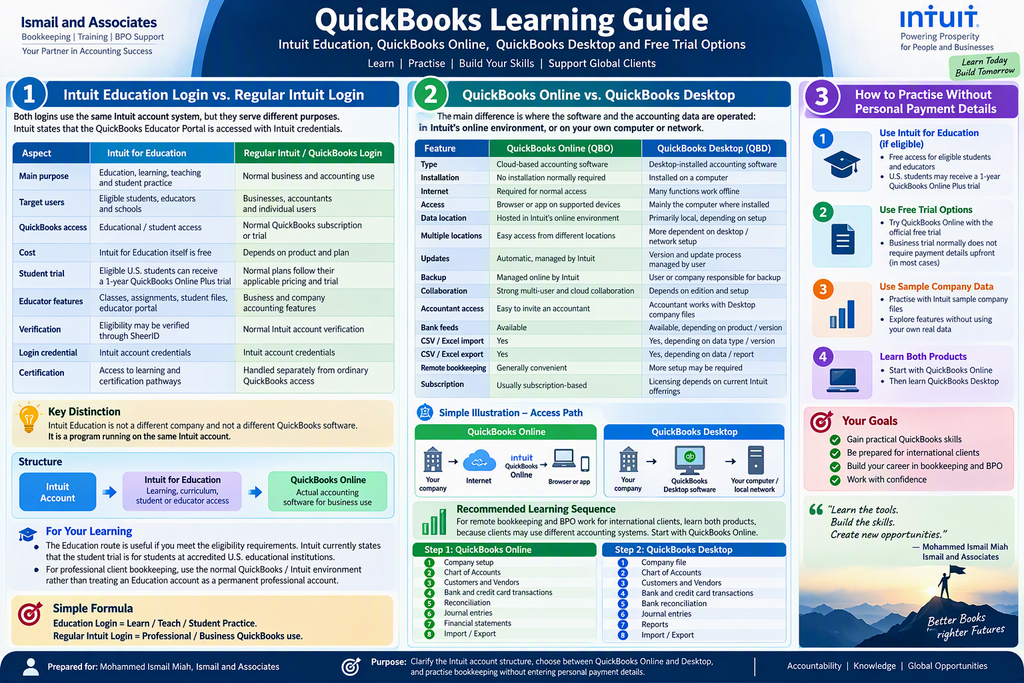
1. Intuit Education Login vs. Regular Intuit Login
Both logins use the same Intuit account system, but they serve different purposes. Intuit states that the QuickBooks Educator Portal is accessed with Intuit credentials, so the education login is not a separate username and password system.
| Aspect | Intuit for Education | Regular Intuit / QuickBooks Login |
| Main purpose | Education, learning, teaching and student practice | Normal business and accounting use |
| Target users | Eligible students, educators and schools | Businesses, accountants and individual users |
| QuickBooks access | Educational / student access | Normal QuickBooks subscription or trial |
| Cost | Intuit for Education itself is free | Depends on product and plan |
| Student trial | Eligible U.S. students can receive a 1-year QuickBooks Online Plus trial | Normal plans follow their applicable pricing and trial |
| Educator features | Classes, assignments, student files, educator portal | Business and company accounting features |
| Verification | Eligibility may be verified through SheerID | Normal Intuit account verification |
| Login credential | Intuit account credentials | Intuit account credentials |
| Certification | Access to learning and certification pathways | Handled separately from ordinary QuickBooks access |
Key distinction
Intuit Education is not a different company and not a different QuickBooks software. It is a program running on the same Intuit account.
| Structure Intuit Account Intuit for Education → learning, curriculum, student or educator access QuickBooks Online → actual accounting software for business use |
For your learning
- The Education route is useful if you meet the eligibility requirements. Intuit currently states that the student trial is for students at accredited U.S. educational institutions.
- For professional client bookkeeping, use the normal QuickBooks / Intuit environment rather than treating an Education account as a permanent professional account.
| Simple formula: Education Login = Learn / Teach / Student Practice. Regular Intuit Login = Professional / Business QuickBooks use. |
2. QuickBooks Online vs. QuickBooks Desktop
The main difference is where the software and the accounting data are operated: in Intuit’s online environment, or on your own computer or network.
| Feature | QuickBooks Online (QBO) | QuickBooks Desktop (QBD) |
| Type | Cloud-based accounting software | Desktop-installed accounting software |
| Installation | No installation normally required | Installed on a computer |
| Internet | Required for normal access | Many functions work offline |
| Access | Browser or app on supported devices | Mainly the computer where installed |
| Data location | Hosted in Intuit’s online environment | Primarily local, depending on setup |
| Multiple locations | Easy access from different locations | More dependent on desktop / network setup |
| Updates | Automatic, managed by Intuit | Version and update process managed by user |
| Backup | Managed online by Intuit | User or company responsible for backup |
| Collaboration | Strong multi-user and cloud collaboration | Depends on edition and setup |
| Accountant access | Easy to invite an accountant | Accountant works with Desktop company files |
| Bank feeds | Available | Available, depending on product / version |
| CSV / Excel import | Yes | Yes, depending on data type / version |
| CSV / Excel export | Yes | Yes, depending on data / report |
| Remote bookkeeping | Generally convenient | More setup may be required |
| Subscription | Usually subscription-based | Licensing depends on current Intuit offerings |
Simple illustration
| Access path QuickBooks Online: Your company → Internet → Intuit’s QuickBooks Online service → Browser or app QuickBooks Desktop: Your company → QuickBooks Desktop software → Your computer / local network |
Recommended learning sequence
For remote bookkeeping and BPO work for international clients, learn both products, because clients may use different accounting systems. Start with QuickBooks Online.
| Step 1: QuickBooks Online | Step 2: QuickBooks Desktop |
| Company setup | Company file |
| Chart of Accounts | Chart of Accounts |
| Customers and Vendors | Customers and Vendors |
| Bank and credit card transactions | Bank and credit card transactions |
| Reconciliation | Bank reconciliation |
| Journal entries | Journal entries |
| Financial statements | Reports |
| Import / Export | Import / Export |
| Accountant access | Accountant tools |
One important clarification
QuickBooks Online is cloud software, but “cloud” does not mean QuickBooks itself is a server.
- QuickBooks Online = the accounting application / service
- Cloud infrastructure = the underlying computing and data-hosting servers
- Intuit = the provider of QuickBooks Online
| In short: Cloud accounting is the method of delivering accounting software and data over the internet. QuickBooks Online is one example of cloud accounting software. |
3. Free Trial vs. Credit Card Requirements
There is an important distinction between the different ways of starting with QuickBooks.
| Signup route | Credit card at signup? | What you get |
| 30-day Free Trial | Depends on offer / region | Trial access to a paid QuickBooks Online plan |
| QuickBooks Free ($0 plan) | No | Limited free accounting features; not a trial |
| Sample / Demo Company | No | Practice environment; changes are not saved |
| Paid subscription | Yes, valid payment method required | Continued paid access |
Intuit’s global FAQ states that payment details are not requested for the 30-day trial, while the offer terms state that a valid card is required to continue after the trial. QuickBooks Free explicitly states “No credit card required” and is not a trial.
Two meanings of “credit card”
| Meaning | Explanation |
| A. Payment card | Entering your own Visa, Mastercard or similar card to pay for QuickBooks. |
| B. Credit-card account in QuickBooks | An accounting account, for example: Credit Card, Company Visa Card, Transactions, Expenses and Payments. |
You do not need to enter personal credit-card payment details to practise recording a credit-card account. For learning, create a practice account in the Chart of Accounts, for example “ABC Business Visa”, and enter sample transactions.
QuickBooks also supports connecting a real bank or credit-card account so transactions download automatically, or importing historical transactions from a file.
| Recommendation: To practise without entering personal card details, use the QuickBooks Free plan or the Sample / Demo Company. The paid 30-day trial is a different route. |
4. Quick Reference Summary
| If your goal is… | Use |
| Learn QuickBooks as an eligible student or educator | Intuit for Education (Intuit account) |
| Do professional client bookkeeping | Regular Intuit / QuickBooks account |
| Work remotely with international clients | QuickBooks Online first, then Desktop |
| Practise with no payment details | QuickBooks Free or Sample / Demo Company |
| Test the full paid features temporarily | 30-day Free Trial (check card terms at signup) |
Note: Intuit’s eligibility rules, trial terms and pricing change from time to time. Confirm current terms on Intuit’s official pages before signing up.
QuickBooks Online
Company Profile, Lead Generation Plan, Course Outline and Account Guide
Prepared for: Mohammed Ismail Miah, Ismail and Associates
Purpose: A single reference covering Intuit and QuickBooks company details, a lead generation framework for international QuickBooks bookkeeping services, the course syllabus, Education Mode account opening, and the assignment submission process.
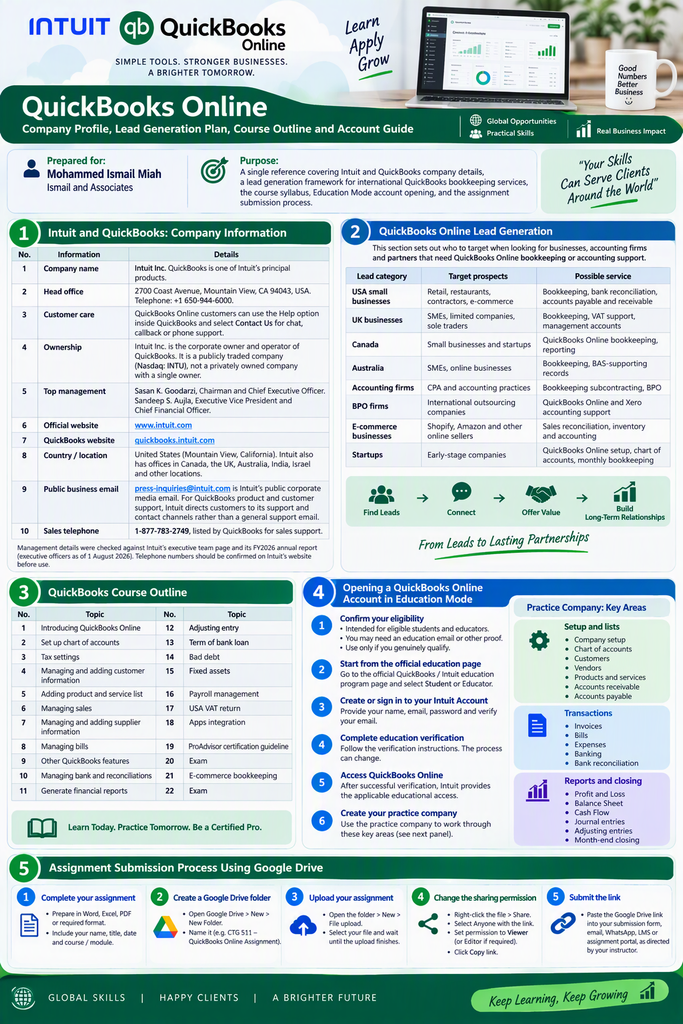
1. Intuit and QuickBooks: Company Information
| No. | Information | Details |
| 1 | Company name | Intuit Inc. QuickBooks is one of Intuit’s principal products. |
| 2 | Head office | 2700 Coast Avenue, Mountain View, CA 94043, USA. Telephone: +1 650-944-6000. |
| 3 | Customer care | QuickBooks Online customers can use the Help option inside QuickBooks and select Contact Us for chat, callback or phone support. |
| 4 | Ownership | Intuit Inc. is the corporate owner and operator of QuickBooks. It is a publicly traded company (Nasdaq: INTU), not a privately owned company with a single owner. |
| 5 | Top management | Sasan K. Goodarzi, Chairman and Chief Executive Officer. Sandeep S. Aujla, Executive Vice President and Chief Financial Officer. |
| 6 | Official website | www.intuit.com |
| 7 | QuickBooks website | quickbooks.intuit.com |
| 8 | Country / location | United States (Mountain View, California). Intuit also has offices in Canada, the UK, Australia, India, Israel and other locations. |
| 9 | Public business email | press-inquiries@intuit.com is Intuit’s public corporate media email. For QuickBooks product and customer support, Intuit directs customers to its support and contact channels rather than a general support email. |
| 10 | Sales telephone | 1-877-783-2749, listed by QuickBooks for sales support. |
Management details were checked against Intuit’s executive team page and its FY2026 annual report (executive officers as of 1 August 2026). Telephone numbers should be confirmed on Intuit’s website before use.
2. QuickBooks Online Lead Generation
This section sets out who to target when looking for businesses, accounting firms and partners that need QuickBooks Online bookkeeping or accounting support.
Target lead categories
| Lead category | Target prospects | Possible service |
| USA small businesses | Retail, restaurants, contractors, e-commerce | Bookkeeping, bank reconciliation, accounts payable and receivable |
| UK businesses | SMEs, limited companies, sole traders | Bookkeeping, VAT support, management accounts |
| Canada | Small businesses and startups | QuickBooks Online bookkeeping, reporting |
| Australia | SMEs, online businesses | Bookkeeping, BAS-supporting records |
| Accounting firms | CPA and accounting practices | Bookkeeping subcontracting, BPO |
| BPO firms | International outsourcing companies | QuickBooks Online and Xero accounting support |
| E-commerce businesses | Shopify, Amazon and other online sellers | Sales reconciliation, inventory and accounting |
| Startups | Early-stage companies | QuickBooks Online setup, chart of accounts, monthly bookkeeping |
3. QuickBooks Course Outline
| No. | Topic | No. | Topic |
| 1 | Introducing QuickBooks Online | 12 | Adjusting entry |
| 2 | Set up chart of accounts | 13 | Term of bank loan |
| 3 | Tax settings | 14 | Bad debt |
| 4 | Managing and adding customer information | 15 | Fixed assets |
| 5 | Adding product and service list | 16 | Payroll management |
| 6 | Managing sales | 17 | USA VAT return |
| 7 | Managing and adding supplier information | 18 | Apps integration |
| 8 | Managing bills | 19 | ProAdvisor certification guideline |
| 9 | Other QuickBooks features | 20 | Exam |
| 10 | Managing bank and reconciliations | 21 | E-commerce bookkeeping |
| 11 | Generate financial reports | 22 | Exam |
4. Opening a QuickBooks Online Account in Education Mode
Follow these steps to obtain QuickBooks Online through Intuit’s education program. The exact process and available features depend on the current program terms.
Step 1 — Confirm your eligibility
- Education access is generally intended for students and educators at eligible educational institutions.
- You may need an institutional or education email address, or other information confirming your educational status.
- Do not use Education access unless you genuinely qualify as an eligible student or educator.
Step 2 — Start from the official QuickBooks Education page
Go to the official QuickBooks / Intuit education program page and select the appropriate Student or Educator option.
Step 3 — Create or sign in to your Intuit Account
You will normally need your name, email address, password and email verification. An existing Intuit Account may be used if the education program allows it.
Step 4 — Complete education verification
Follow the verification instructions provided by Intuit or your educational institution. The verification process can change.
Step 5 — Access QuickBooks Online
After successful verification, Intuit provides the applicable QuickBooks Online educational access.
Step 6 — Create your practice company
Use the practice company to work through these areas:
| Setup and lists | Transactions | Reports and closing |
| Company setup | Invoices | Profit and Loss |
| Chart of accounts | Bills | Balance Sheet |
| Customers | Expenses | Cash Flow |
| Vendors | Banking | Journal entries |
| Products and services | Bank reconciliation | Adjusting entries |
| Accounts receivable | Accounts payable | Month-end closing |
5. Assignment Submission Process Using Google Drive
Step 1 — Complete your assignment
- Prepare your assignment in Word, Excel, PDF or the required format.
- Check that your name, assignment title, date and course / module are included.
Step 2 — Create a Google Drive folder
- Open Google Drive and click New, then New Folder.
- Give it a clear name, for example: CTG 511 – QuickBooks Online Assignment.
Step 3 — Upload your assignment
- Open the folder, click New, then File upload.
- Select your completed assignment and wait until the upload finishes.
Step 4 — Change the sharing permission
- Right-click the assignment file and select Share.
- Under General access, select Anyone with the link.
- Set permission to Viewer unless your instructor asks for Editor access, then click Copy link.
Step 5 — Submit the link
Paste the Google Drive link into your course submission form, email, WhatsApp, LMS or assignment portal, as your instructor directs.
QuickBooks Online
Dashboard Introduction
Training Notes and Quick Reference Guide
QuickBooks Online (QBO) has several main areas for navigating and performing accounting tasks. 1. The Dashboard at a Glance
The Dashboard (Home page) is the central view of the business. It brings together sales, expenses, bank accounts, profit and loss, and cash flow in one place.
Figure 1: Simplified dashboard layout (illustrative; your screen may differ)
The main areas to learn
| Area | Where | Main purpose |
| Navigation Bar | Usually left side | Move between accounting sections |
| + Create (New) | Top area | Start new transactions, tasks and other workflows |
| Gear (Settings) | Top right | Company settings and tools |
| Help | Top right | Help, support and learning resources |
Older official QuickBooks training material identifies the Navigation Bar, the New (+) menu and the Gear menu as the three primary areas for moving around QBO. Help completes the set for everyday use.
2. Top Menu Bar (Task Bar)
The top bar is mainly about the account and communication: who you are, which company you are in, and how you search, create and get help.
| No. | Item | Main purpose |
| 1 | QBO Logo | QuickBooks Online home and product identity |
| 2 | Company Name | Identify or switch the current company |
| 3 | Search Bar | Search transactions, customers, vendors and more |
| 4 | AI | AI-powered assistance and features, where available |
| 5 | + Create | Create transactions and other items |
| 6 | Notifications | Important QuickBooks and company notifications |
| 7 | Profile | User profile and account-related options |
| 8 | Settings (Gear) | Company and QuickBooks settings |
| 9 | Apps / Integrations | Connect and manage integrated applications |
| 10 | Messages | Messages and communication features, where available |
| 11 | Tasks | View or manage assigned tasks, where available |
| 12 | Help | QuickBooks help and support |
| 13 | QBO Account | Account and product access and related controls |
| Memory method: Top Bar = Account and Communication. QBO, Company, Search, AI, Notifications, Profile, Settings, Apps, Messages, Tasks, Help. |
3. Vertical Navigation Bar (Side Bar)
The vertical navigation bar is the main working area for moving between QuickBooks functions.
| No. | Item | Main purpose |
| 1 | + New / Create | Create invoices, bills, expenses, payments and other transactions |
| 2 | Bookmark | Access saved or frequently used pages, depending on the interface |
| 3 | Home | Return to the QuickBooks Home / Dashboard |
| 4 | Feed | View relevant business and accounting activity or updates, where available |
| 5 | Reports | Open financial and management reports |
| 6 | All Apps | Find QuickBooks apps and connected applications |
| 7 | Print the current page or report, where supported | |
| 8 | Other Tools | Additional accounting, sales, expense, banking or business functions |
| Memory method: Vertical Bar = Accounting Work. New, Bookmark, Home, Feed, Reports, All Apps, Print, Other Tools. |
| Important note: The + New icon in the side bar should not be confused with the + icon in the top bar when your interface shows both. Intuit has changed its navigation design over time, so the location and grouping of these controls can differ. |
4. Navigation Bar Sections
The Navigation Bar is the main menu used to move around QuickBooks. Typical sections include the following.
| Section | What you do there |
| Home / Dashboard | Overview of the business |
| Sales | Invoices, customers and sales transactions |
| Expenses | Expenses and bills |
| Banking | Review imported bank transactions |
| Customers | Customer information |
| Reports | Financial and management reports |
| Taxes | Tax-related functions |
| Accounting | Chart of Accounts and accounting tools |
| Apps | Connected applications |
The exact menu depends on your QBO subscription, country and current interface. Intuit also allows parts of the newer navigation menu to be customized.
5. + Create Icon
+ Create is mainly used to start a new transaction, task or other workflow. In the newer interface, Intuit describes it as opening a new transaction, project, task or goal.
| Create | Related party | Typical accounting flow |
| Invoice | Customer | Customer, Invoice, Receive Payment |
| Bill | Vendor | Vendor, Bill, Pay Bill |
| Expense | Vendor | Bank or Cash, Expense, Record Expense |
6. Gear (Settings) Icon
The Gear icon is one of the most important areas for setting up and managing your QuickBooks company. Intuit’s getting-started guide directs users to Settings, then Account and Settings, to configure company information and product features. Typical options include:
- Account and Settings
- Company Information
- Sales settings
- Expenses settings
- Advanced settings
- Manage Users
- Custom Forms
- Chart of Accounts-related tools
- Import, export and other company tools
- Subscription and billing
- Feedback
7. Help Icon
The Help icon provides assistance while you work. Intuit documents both a newer AI-powered help experience and a classic Help experience, depending on the account and interface. You can use Help to:
- Search QuickBooks help
- Find support articles
- Get product assistance
- Access learning resources
- Contact support, where available
8. Dashboard Widgets
Current QBO Home pages can include the following widgets, and the layout can be customized.
| Widget | What it shows |
| Sales and Get Paid | Invoices, sales activity and money owed to you |
| Bank Accounts | Connected bank balances and transactions to review |
| Profit and Loss | Income, expenses and net result for a period |
| Expenses | Spending summary by category |
| Cash Flow | Money coming in and going out over time |
9. Quick Revision
Figure 2: Five questions, five areas
NAVIGATION → CREATE → SETTINGS → HELP
Suggested learning pathway
Once these five areas are familiar, continue in this order:
Customers → Sales → Expenses → Banking → Chart of Accounts → Reports → Reconciliation
Note: Figures are learning illustrations, not official QuickBooks screenshots. Always confirm menu names against your own QBO screen.
RELATED POSTS
View all